
Import your existing documents
Currently, Ellipsus supports .docx and Markdown (.md) import. Both options are available in the same dropdown menu when creating a new document.
Here’s how to get started.
Importing your docs
To import a file:
Open your dashboard
Click or tap + New
Choose either .docx or Markdown (.md)
Select a file (or multiple files) from your computer or phone.
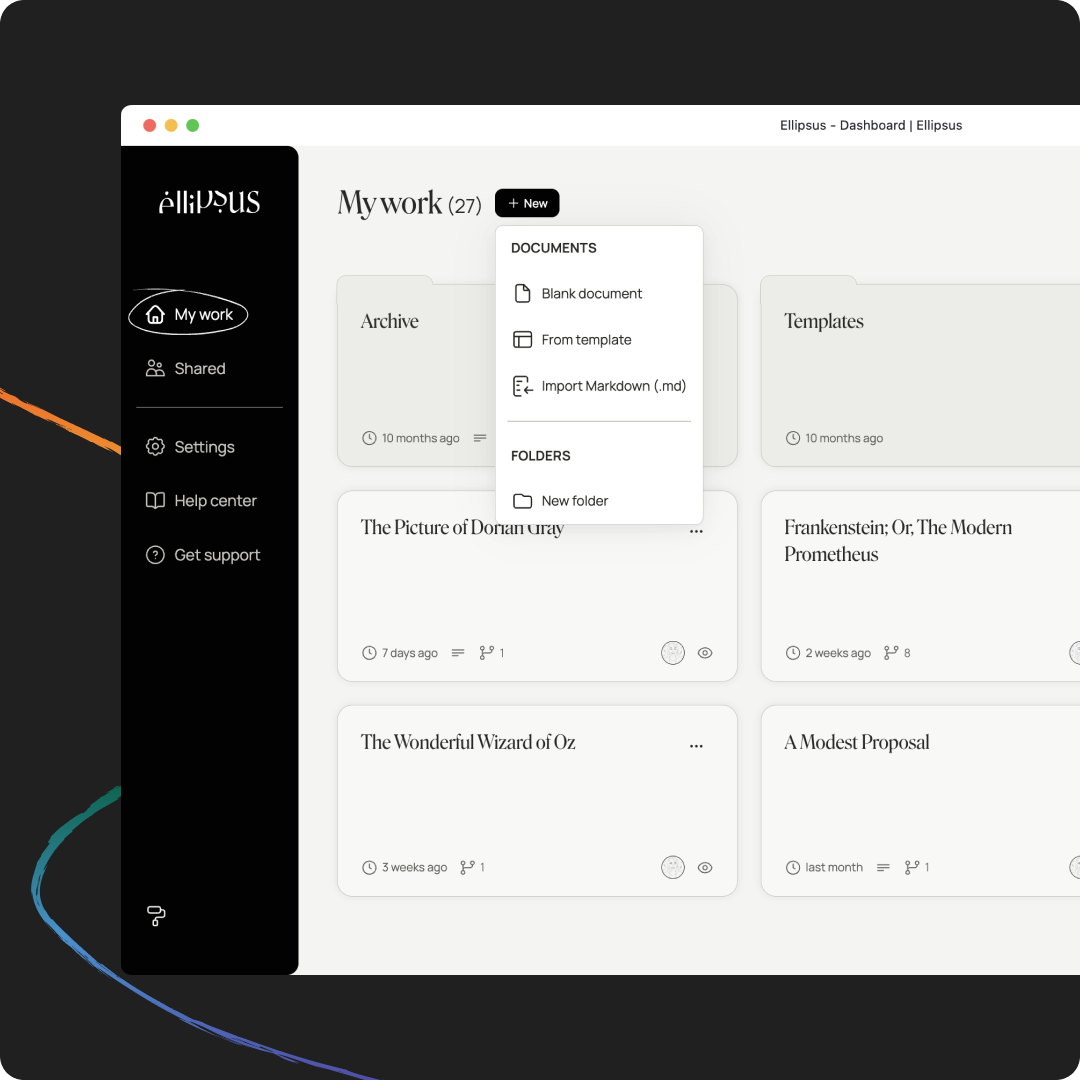
After importing, you can:
Fine-turn your formatting, if needed.
Learn more about formatting your docs here.
.docx vs. .md: what’s the difference?
.docx
.docx import preserves your formatting automatically, including:
Styling (bold, italics, headings, colors, etc.)
Paragraph spacing
Images
If you're importing from Google Docs or Microsoft Word, this is usually the quickest and easiest option.
Markdown (.md)
If you’ve used Discord or Slack formatting (like **bold** or *italics*), you’ve already used basic Markdown. Markdown can handle long, but simple, text files, but images can not be imported and will need to be uploaded again after import.
After importing your .md document, you can update your fonts and paragraph spacing and clean up extra line and paragraph breaks by displaying invisible characters.
Unsupported elements
Some complex layouts or highly customized formatting may need light cleanup after import.
Note: Tables and comments will not be included in imported files.
If something doesn’t look quite right, you can adjust styles directly in Ellipsus once the file is uploaded.
Exporting your documents
From Google Docs
To export as:
.docx: File → Download → Microsoft Word (.docx)
.md (only possible on desktop): File → Download → Markdown (.md)
From Microsoft Word
Microsoft Word exports directly to .docx:
File → Save as → Word Document (.docx)
Microsoft Word doesn’t export or save to .md (but get in touch to correct us if we’re wrong!).
As a workaround, you can try Pandoc (though there is a learning curve) or import your .docx files into Google Docs and download them as .md files.
From Libreoffice / Openoffice
Both programs export directly to .docx:
File → Save as → Word (.docx)
Neither programs export or save to .md (but get in touch to correct us if we’re wrong!).
As a workaround, you can try Pandoc (though there is a learning curve) or import your .docx files into Google Docs and download them as .md files.
From Scrivener
Open your project and navigate to: File → Export → Files
You can export as:
.docx: File → Compile → Microsoft Word (.docx)
.md: There are two ways to export to Markdown.
File → Compile → click the Gear icon, and select "Convert rich text to multimarkdown"
File -> Export -> Files → click Options → select "Convert rich text to multimarkdown"