TABLE OF CONTENTS
- Creating and managing your profile
- How to create a profile
- The profile builder
- Adding Reader links to your profile
- Previewing your profile
- Making your profile public
Creating and managing your profile
Give your writing a home of its own, and share all your public works in one place. Customize your profile, choose which public Reader links to feature, and give your audience one place to find your shared works.
You're in control of the information that appears on your profile, and whether your profile is hidden or visible to anyone with the link.
Accessing profiles from the app
You can create and edit your profile in the Ellipsus iOS and Android apps, however:
Your profile preview and profile link will open in your device's browser.
You'll need an internet connection to preview or visit your profile link.
How to create a profile
On desktop: Select Public profile from the left sidebar on your Dashboard.
On mobile: Select the More tab from the bottom toolbar on your Dashboard; then select Public profile.
You'll be taken to the profile setup page, where you can create and manage your profile.
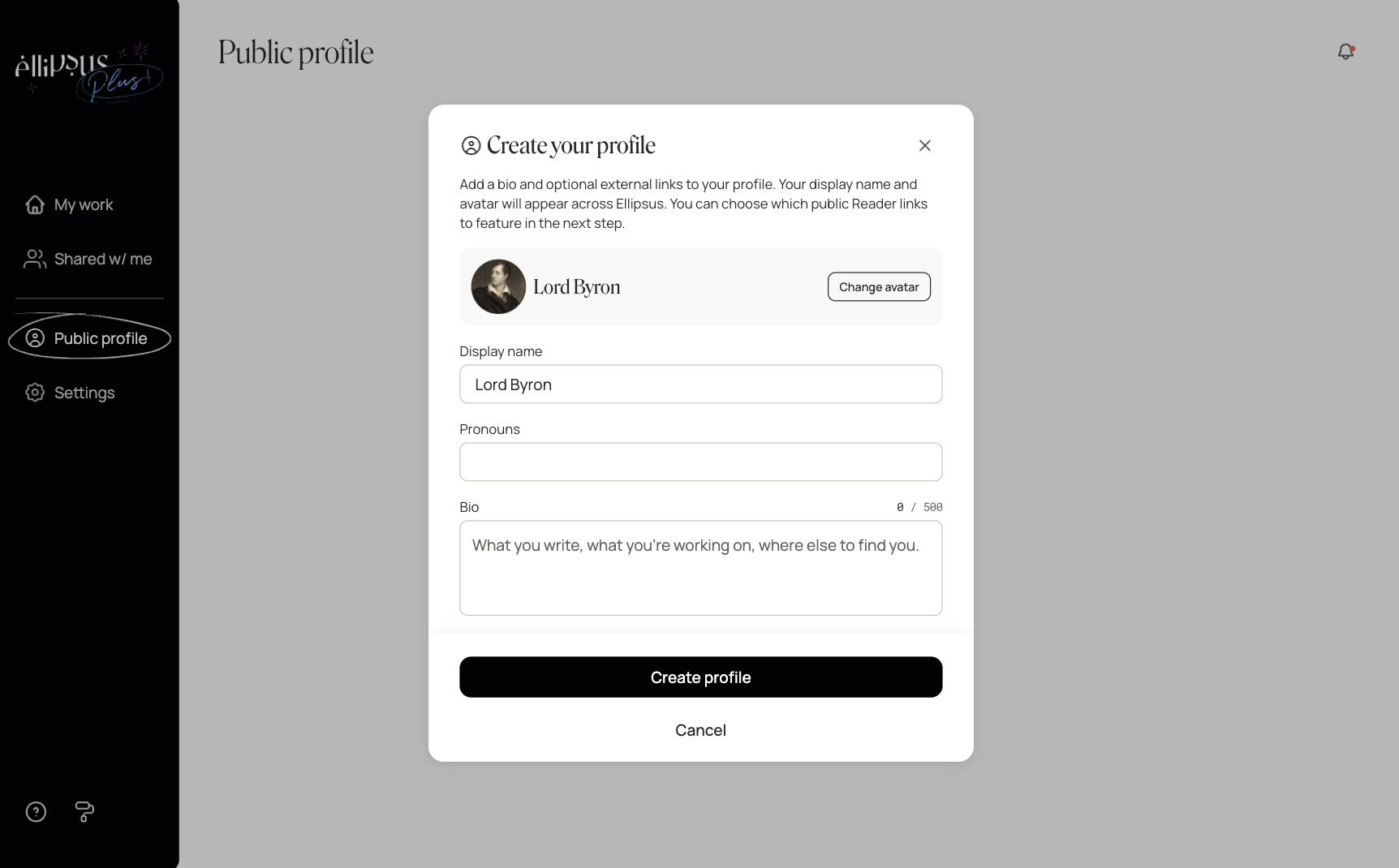
Select Create your profile to open the profile builder.
Add your information and select Create profile when you're ready.
You'll see a confirmation message once your profile has been created.
Note: Creating a profile does not automatically make it public. You can customize it, add and remove public Reader links, and preview before making your link public.
The profile builder
The profile builder is where you can introduce yourself to your audience and add any information you'd like to share.
You can customize and/or edit your:
Display name and avatar: Edit your display name or change your avatar (you can choose from our presets, or add your own image). Both will also appear across Ellipsus, not just on your profile.
Pronouns: Add your pronouns in the empty field. (Optional)
Bio: Tell your audience about yourself (up to 500 characters) in the empty field. (Optional)
External links: Add up to five links to other places where people can find you or your work, like social accounts, personal websites, or any other publishing platforms. (Optional)
To add external links, select Add link and enter your link details.
You can add up to five links. You can also drag links to reorder them.
When you’re ready, select Create profile to visit the profile setup page, where you can add public Reader links to your profile.
You can edit this information at any time.
You can also delete your profile from the profile builder:
Your Reader links will not be affected.
This decision is permanent, but you can create a new profile at any time.
The profile setup page
Your profile setup page is where you can manage your profile, and:
Choose which public Reader links to feature
Set your profile to hidden or public
Preview your profile from this page to see how it appears to your audience (e.g. anyone with the link)
Copy your profile’s link to share it
Adding Reader links to your profile
You can feature any of your public Reader links on your profile, giving your audience a place to browse and read your works in one place.
Only public Reader links can be added to your profile. Reader links with Private or Partial visibility won't appear in the selection list.
You can change any Reader link's visibility from the Reader settings of an individual document or draft.
To add public Reader links:
From the Works field, select Select Reader links.
You'll see a list of your available public Reader links (ordered by when they were last updated).
Check the box beside each Reader link you'd like to feature.
Your selected links will appear on your profile under Public works.
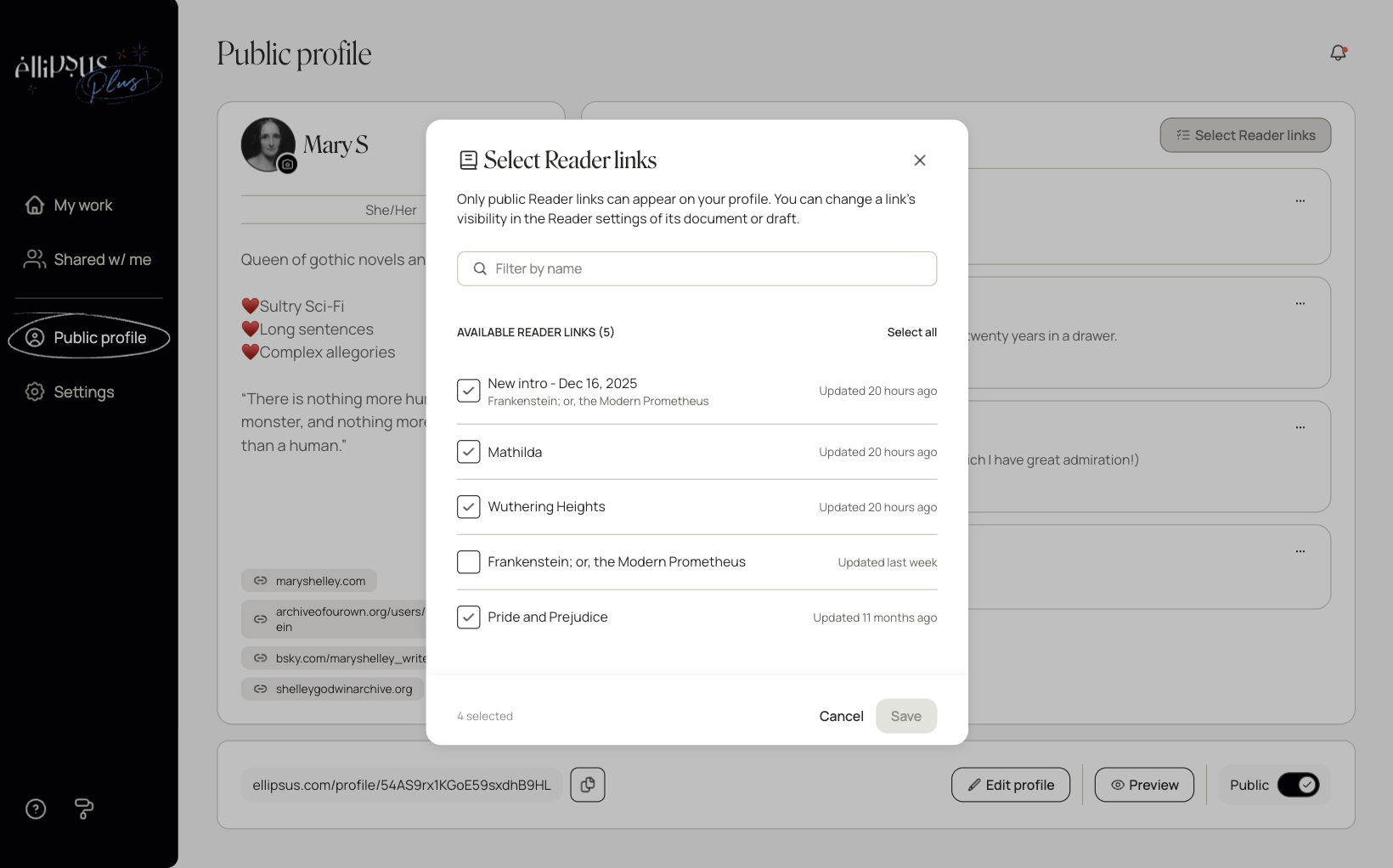
You can add or remove public Reader links from your profile at any time.
Previewing your profile
You can preview your profile from the profile setup page to see how it will appear to visitors.
Your preview includes your display name and avatar, profile information, any external links, and any Reader links you've selected under Public works.
You can preview your profile even while it's hidden from others, so you can edit your profile before sharing it publicly.
Making your profile public
Your profile is set to hidden by default. When you're happy with your profile, you can make it public.
From the profile setup page, you can:
Set your profile to public: Anyone with your profile link can view your profile, access and read the public Reader links you've featured.
Set your profile to hidden: Your profile won't be accessible to visitors, even if they have its link.
You can still access and edit your profile while logged into the account that created it.
Copy your profile link: Share your profile wherever you'd like, e.g. social media, platforms and other websites, or directly with friends and readers.
You can switch between public and hidden at any time.
Note: Hiding your profile won’t change the visibility of your individual Reader links. Any Reader links you've made public will remain accessible through their individual links even while your profile is hidden.
You can always return to your profile setup page to update your information, remove or add any Reader links, or change your profile’s visibility settings.
Was this article helpful?
That’s Great!
Thank you for your feedback
Sorry! We couldn't be helpful
Thank you for your feedback
Feedback sent
We appreciate your effort and will try to fix the article