Sometimes, the right aesthetic is all you need to get those words flowing.
Ellipsus offers many unique and colorful themes to make your workspace a feel a little more like you: light, dark, and lots of colors in between. Themes apply across Ellipsus (your dashboard, all works, and the Reader) and are saved to your browser / device combo.
Note: If you choose System, Ellipsus will appear in basic light or dark mode depending on your operating system settings.
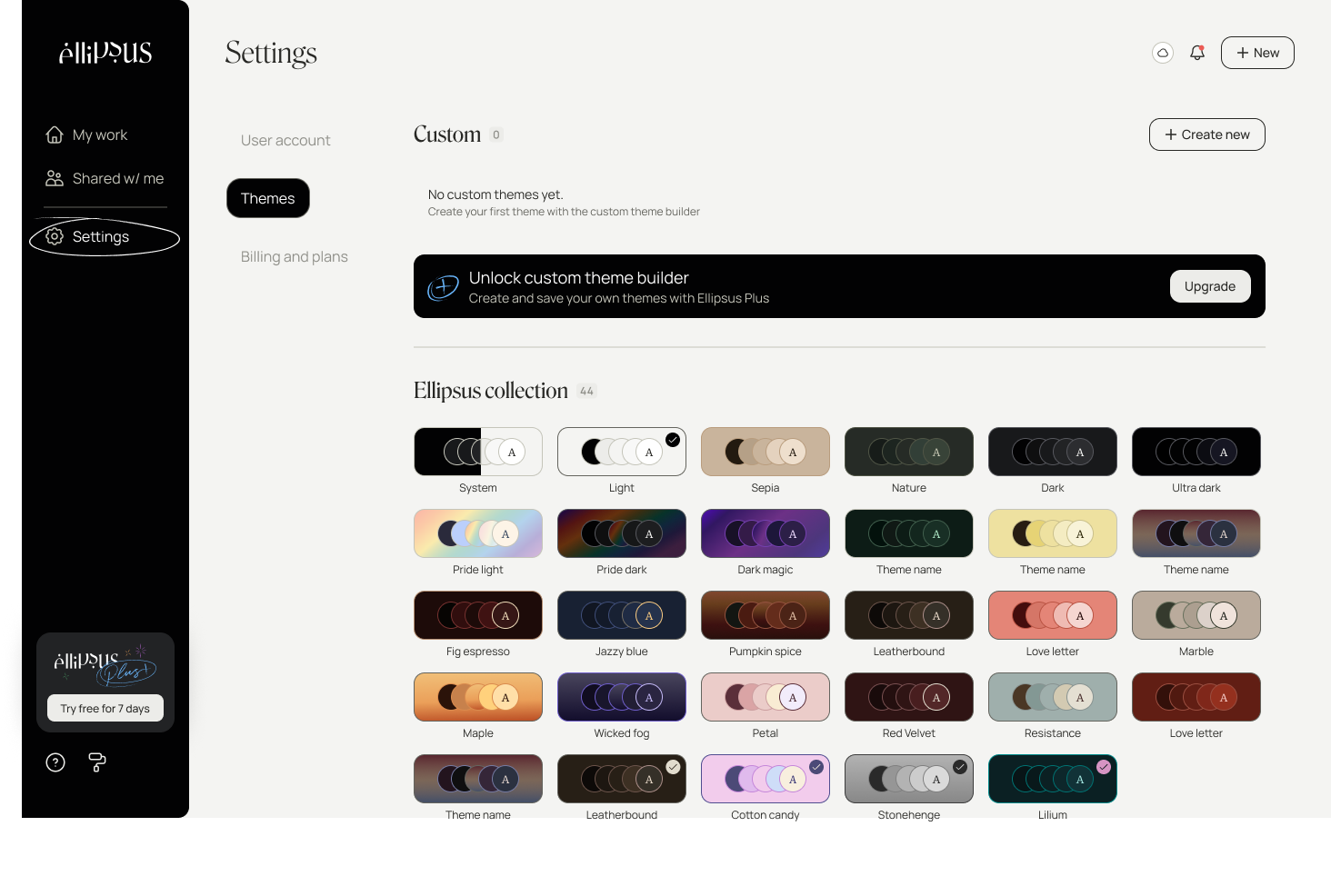
Setting a theme
From the dashboard
(Desktop-only) Select the paint roller icon and choose a theme.
Navigate to Settings and select Preferences to preview and choose a theme.
From the editor
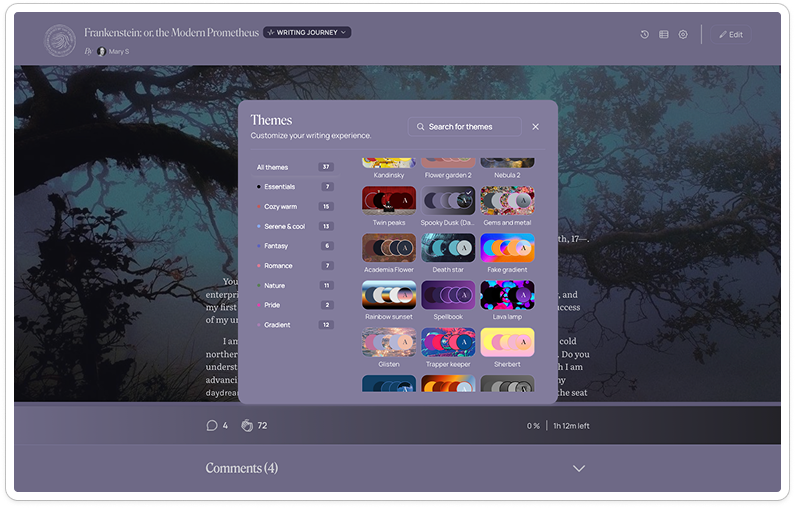
Select the paint roller icon to preview and choose a theme. (If you’re on mobile, tap to reveal the left-hand panel first.)
Open your editor settings—your theme options will be at the bottom.
From a Reader link
Select the gear icon in the top right to preview and choose a theme.
Build your own custom theme with Ellipsus Plus
While Ellipsus themes are free for all, the custom theme builder is an Ellipsus Plus feature.
The custom theme builder lets you create unlimited themes, using any colors, gradients, images, or .gifs—so your writing space feels more like you.
Custom themes work everywhere standard themes do, across your dashboard, in the editor, as Snippet backgrounds, and on your Reader links.
Was this article helpful?
That’s Great!
Thank you for your feedback
Sorry! We couldn't be helpful
Thank you for your feedback
Feedback sent
We appreciate your effort and will try to fix the article