There are two main areas that allow you to set and change your Ellipsus account settings and preferences: your settings page and your editor settings. Some of these settings are universal and will transfer across browsers and devices, while others are stored locally in your browser's cached data.
TABLE OF CONTENTS
The Settings page
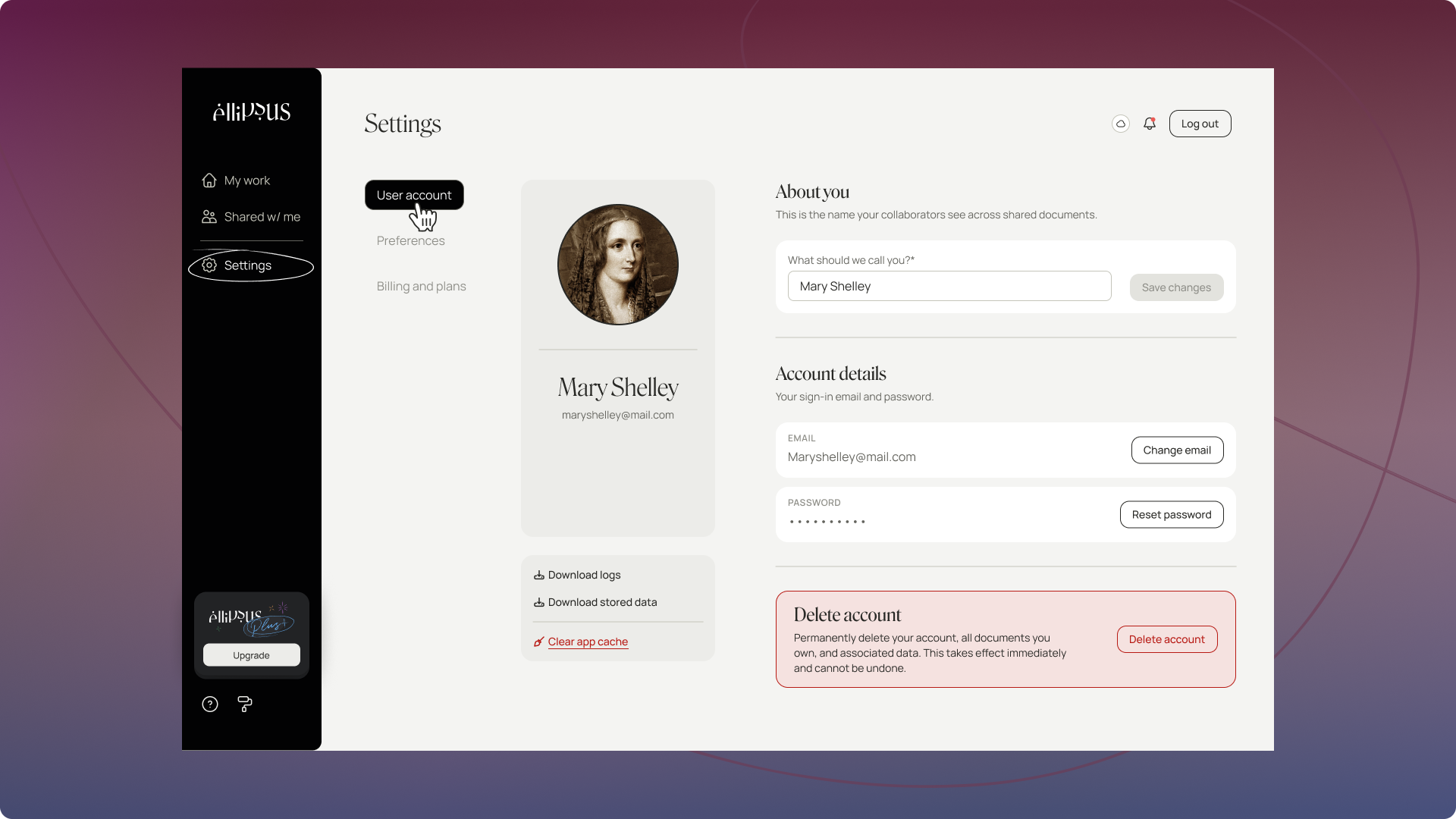
The Settings page has three tabs that allow you to manage the details and settings that impact your Ellipsus account:
- User account where you can set and change your display name, email, and password. This is also where you can download logs and stored data for Support and (if you really want to) delete your account.
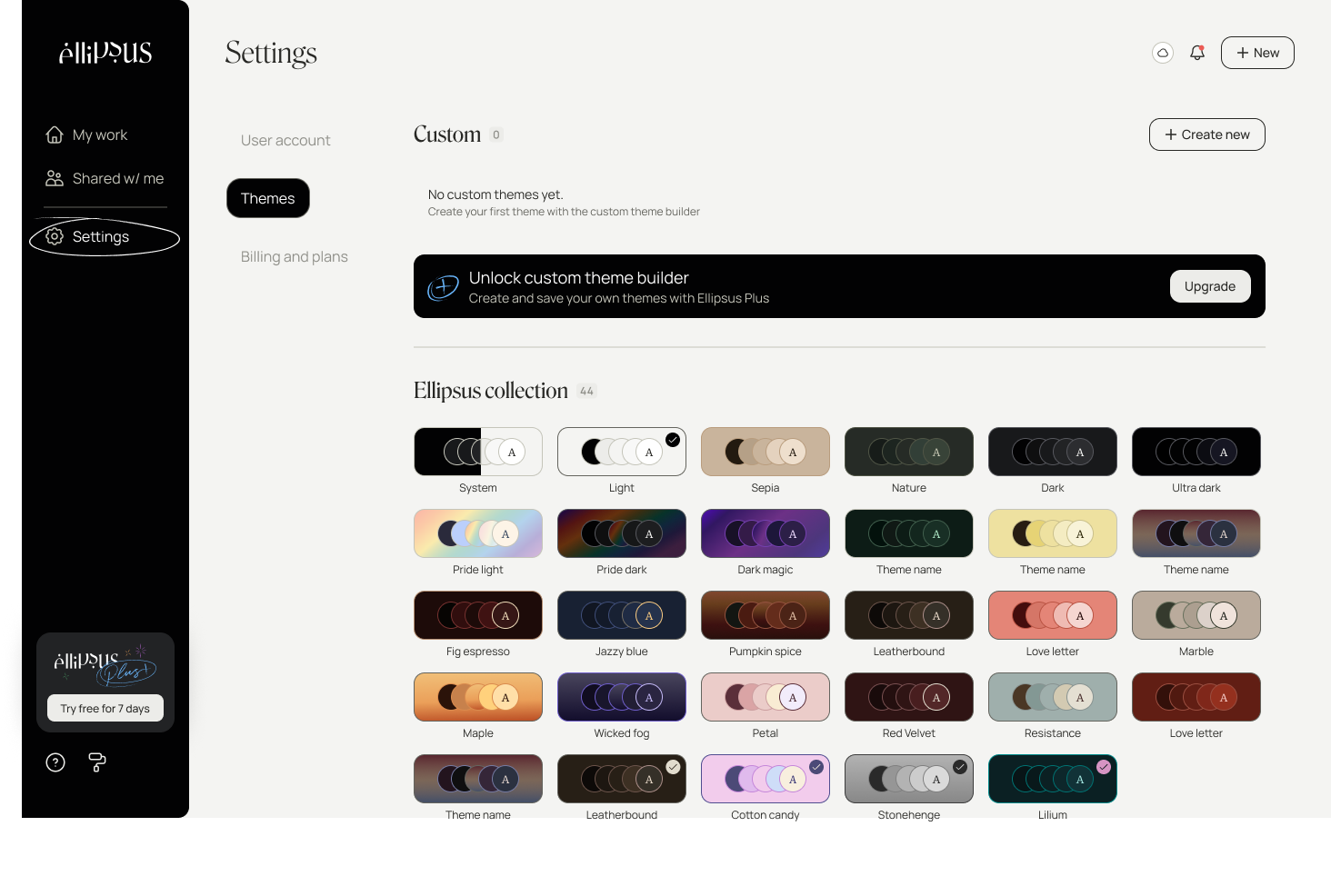
- Themes where you can change the local appearance of Ellipsus by setting a theme.
- Billing and plans where you can manage Ellipsus Plus.
User account
From the User account section, you can change the following details:
- Display name
- Profile picture
- Email address
- Password
This is also where you will find and download your logs and stored data if you need support.
Themes
Ellipsus offers many unique and colorful themes to make your workspace a feel a little more like you: light, dark, and lots of colors in between. Themes apply across Ellipsus (your dashboard, all works, and the Reader) and are saved to your browser / device combo.
Note: If you choose System, Ellipsus will appear in basic light or dark mode depending on your operating system settings.
Document defaults
With Document defaults, you can set your preferred font, font size, spacing, alignment, and layout for every new document or draft you create.
Document defaults is a Plus feature. Learn more about Document defaults here.
The editor settings
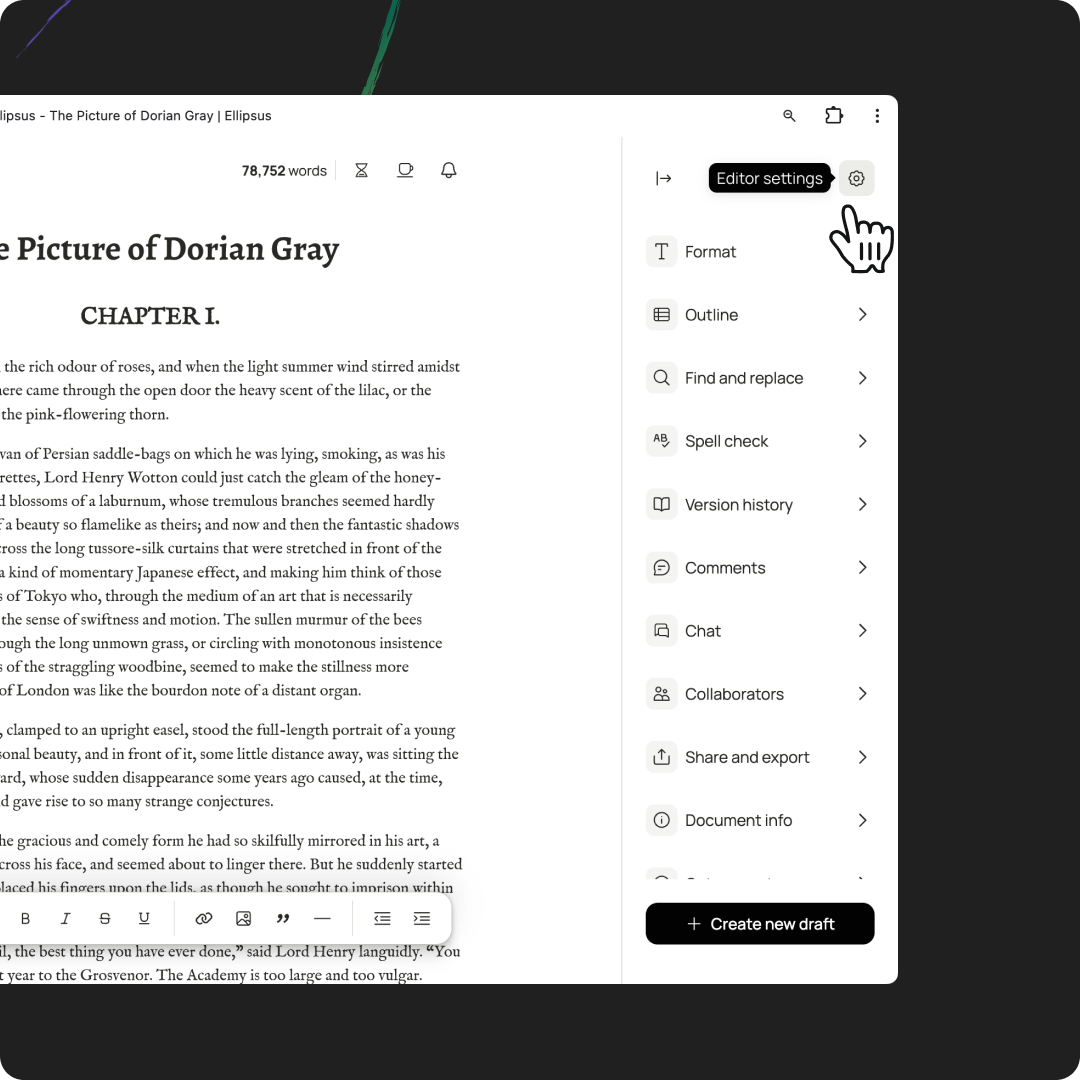
You’ll find Editor settings at the top-right of your expanded format panel—just click on the gear icon. Currently, you can set your preferences for smart formatting, collaboration, and display.
Customize smart formatting
Quotes: When switched on, straight quotes and apostrophes will be replaced with smart quotes / curly quotes and apostrophes.
Ellipses: When switched on, three periods will be turned into a smart ellipsis (…).
Markdown shortcuts: When enabled, you can use markdown shortcuts to quickly format text.
Double-space inserts period: When switched on, double-tapping the space bar after entering text will insert a period. (When switched off, the editor will follow your device settings.)
Toggle headings: When enabled, you can collapse and expand the writing between headings to show or hide text.
Dashes: Choose whether hyphens should be converted to en dashes or em dashes (or both).
Customize collaboration settings
Live cursors: When enabled, you will see your collaborators’ cursor and display name when they’re typing in the same doc or draft as you.
Collaborator avatars: When enabled, you will see your collaborators’ picture in the draft card if they’re viewing the same doc or draft as you.
Customize display settings
Desktop formatting bar: When enabled, you will see a formatting bar at the bottom of your editor when working on a larger screen. (If you’re working on mobile, or if your browser width is very narrow, you won’t see this option.)
Invisible characters: When enabled, the editor will display non-printable characters like spaces, line breaks, and paragraph breaks.
Typewriter scrolling (Plus): When enabled, your writing will scroll automatically to keep your active line centered in the editor.
Word count: When enabled, your current word count will be visible in the editor when not in focus mode.
Theme: Choose your preferred theme.
Document zoom: Adjust the zoom level of your document for a more comfortable reading or writing view. (On desktop, you can change zoom from Document Settings, the bottom bar, or the left sidebar. On mobile, zoom is available from the top bar. You can also use ⌘ + / − to zoom in or out.)
Was this article helpful?
That’s Great!
Thank you for your feedback
Sorry! We couldn't be helpful
Thank you for your feedback
Feedback sent
We appreciate your effort and will try to fix the article