
Custom themes
Part of Ellipsus Plus
The custom theme builder lets you create unlimited themes, using any colors, gradients, images, or .gifs—so your writing space feels more like you. You can attach any custom theme to Reader links, so your audience stays in the zone, or share your themes with your community via export and import.
Custom themes work everywhere standard themes do, across your dashboard, in the editor, as Snippet backgrounds, and on your Reader links.
Open the theme builder
You'll find the theme builder where you choose your themes.
Select the paint roller icon in the dashboard or editor to open the theme picker, then choose the option to create a custom theme. (On mobile, tap to reveal the left-hand panel first.)
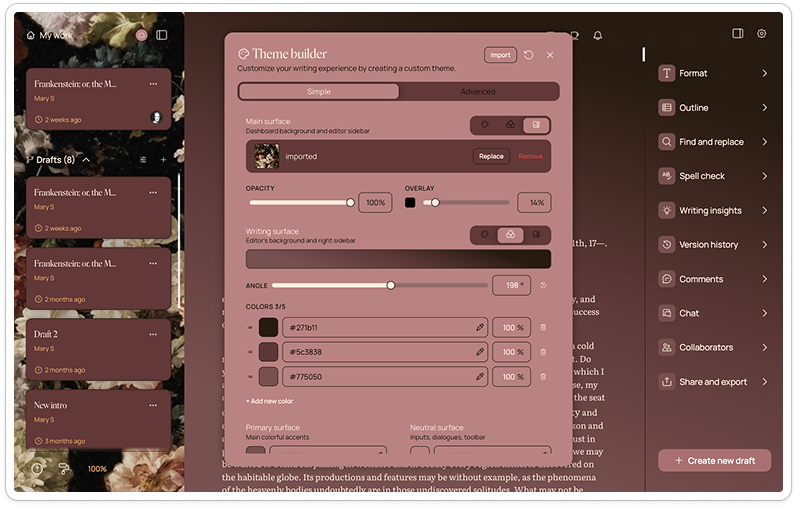
Simple and Advanced
The builder has two tabs, so you can go as deep as you like:
Simple: The quickest way to a great-looking theme. Set your main colors and backgrounds, text, etc.
Advanced: Beyond colors and backgrounds, you can adjust many other details, like highlights, button colors, shadows to set depth, and more.
You can switch between tabs at any time while you're building your theme. A live preview updates as you edit, so you can see exactly how your theme looks before you commit.
Choose your colors
Custom themes are built around three colors:
A base color
A primary accent
A secondary accent
Pick each color with the color picker, or paste in a hex code directly if you have an exact shade in mind. (If a hex value isn't valid, you won't be able to save until it's fixed.)
To save time, selecting a color can auto-derive complementary variants—so your theme stays balanced without you having to tune every shade by hand.
Ellipsus also keeps your theme readable. Colors are checked against WCAG AA contrast guidelines, and text and interface elements are adjusted automatically when an accent color is very dark or very saturated.
Add a background
For each theme you can choose a background style:
Solid: a single background color.
Gradient: a blend between multiple colors.
Image: a background image, including static images, or .gifs.
Save and apply your theme
Give your theme a name and save it! Your custom themes appear in the theme picker alongside the curated ones, ready to apply. When you reopen a saved theme to make changes, save again to update them.
Your themes are synced to your account, so they’ll follow you across your devices.
Custom themes on Reader links
You can carry your custom themes over to the Reader, so the your audience can see your work the way you intended.
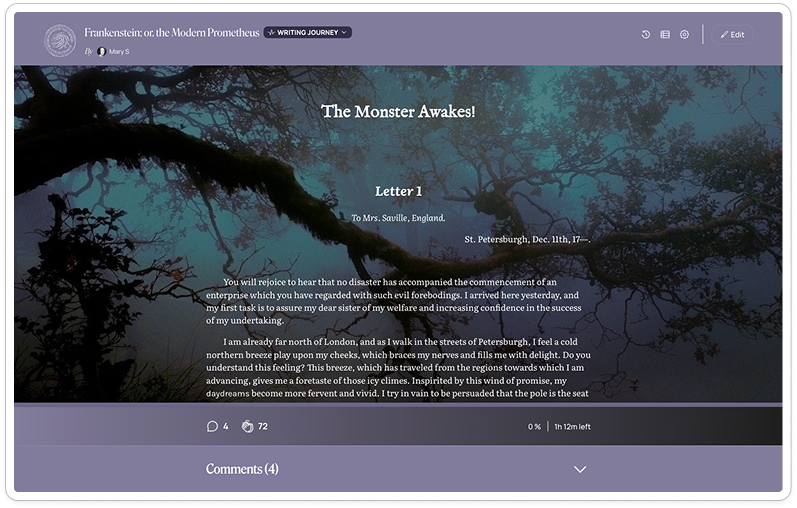
If you open someone else's Reader link that has a custom theme set, that theme is shown for that link, temporarily, without changing your own saved theme preference.
You can also import an exported theme to their own account. You can export any theme by choosing export CSS.
If you revert back to the free plan
While Ellipsus themes are free for all, the custom theme builder is an Ellipsus Plus feature.
Any themes you’ve created with the custom theme builder will remain saved to your account, but will be inaccessible on the free plan.
If you return to Ellipsus Plus, your custom themes will become available again, exactly as you left them.
For more information, see Returning to the free plan