TABLE OF CONTENTS
- Browse previous versions
- Restore past versions of a document or draft
- Share your version history with Ellipsus Plus
Writing—whether alone or with others—is never just writing. It’s rewriting, reworking, and revising. Occasionally, it’s even revisiting previous drafts or ideas.
With version history, you can write (or rewrite) freely, while Ellipsus saves previous versions in the background. At any time, writers and collaborators can view, compare, and restore past versions.
Browse previous versions
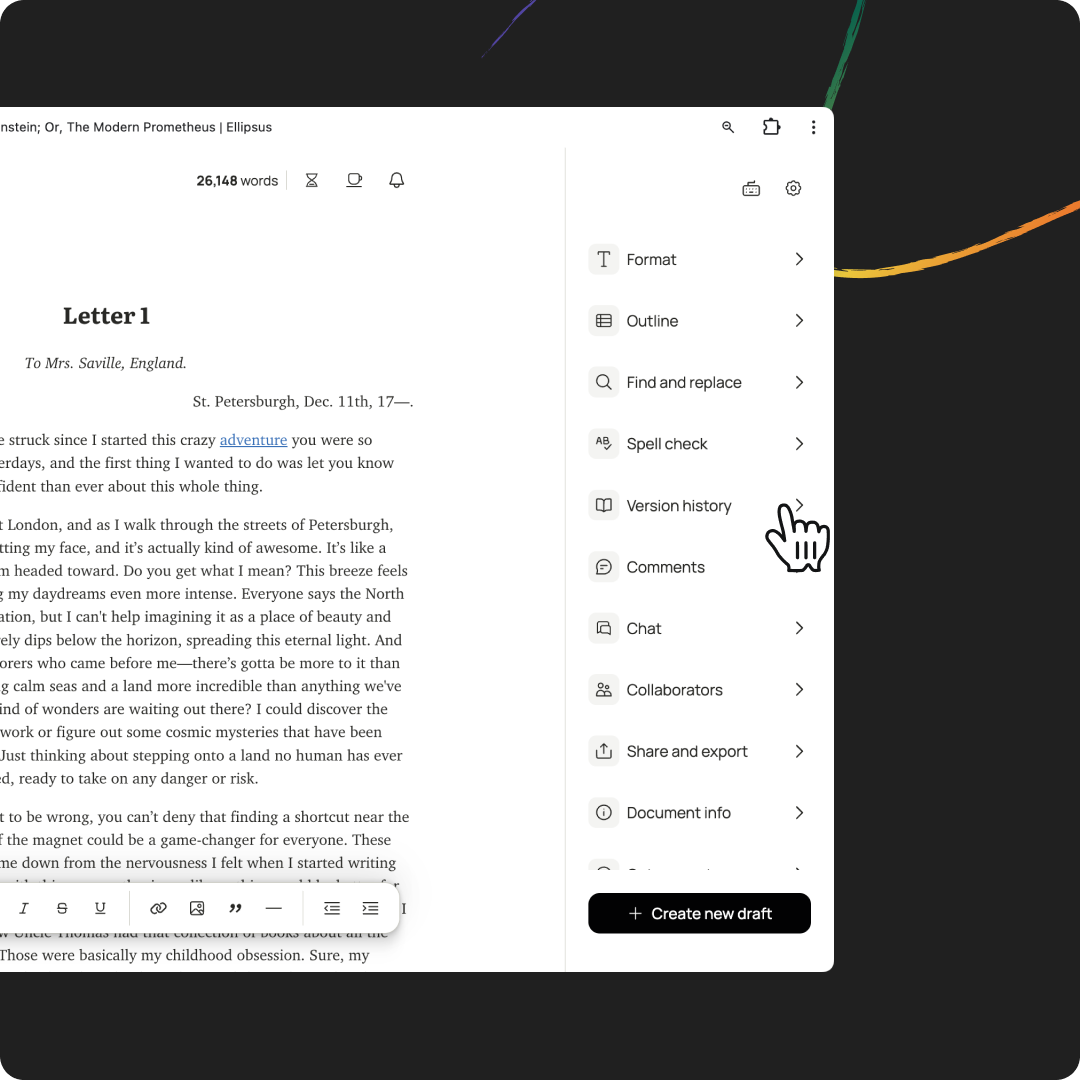
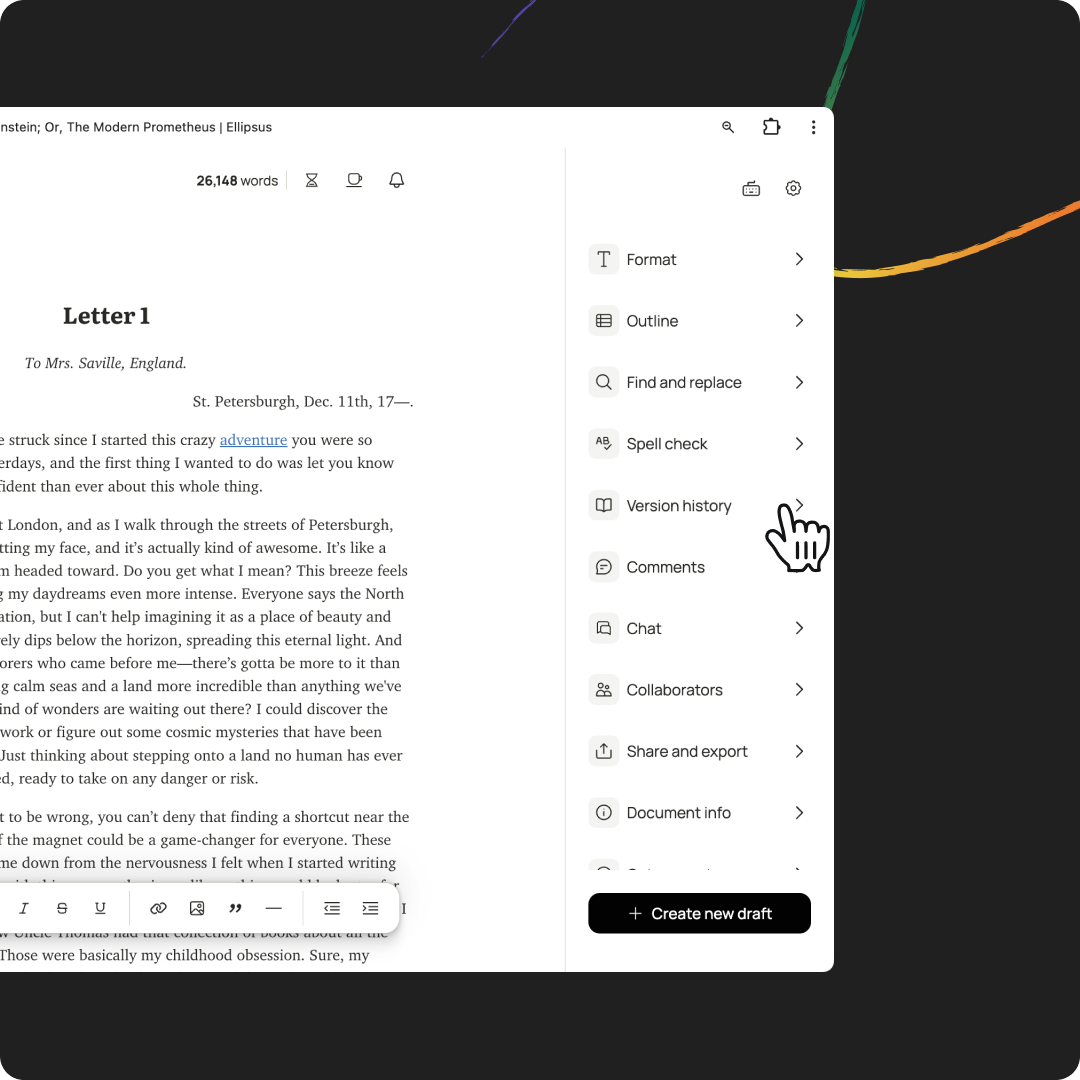
Open your main document—or any draft—and click on Version history to view a timeline of your previous writing sessions. Click on any date to expand it and view a timestamped history of individual versions. Select any timestamp to view a version—the selected version will appear in the right-hand pane, next to the current text.
Below each timestamp, you’ll see the display names of any editors. And if you’re viewing the version history of your main document, you’ll be able to see when specific drafts were merged.
Once you’ve selected a version, you can either compare it to the previous version (i.e., the preceding timestamp) or the current draft (i.e., the text in the left-hand pane). Comparing a version with the previous one allows you to see the changes made between writing sessions; comparing it with the current draft shows the evolution between then and now.
Restore past versions of a document or draft
To view and restore past versions of your document or draft, click on Version history to view a timeline of your previous writing sessions.
Click on any date to expand it and view a timestamped history of individual versions. Select any timestamp to view a version—the selected version will appear in the right-hand pane, next to the current text. Below each timestamp, you’ll see the display names of any editors.
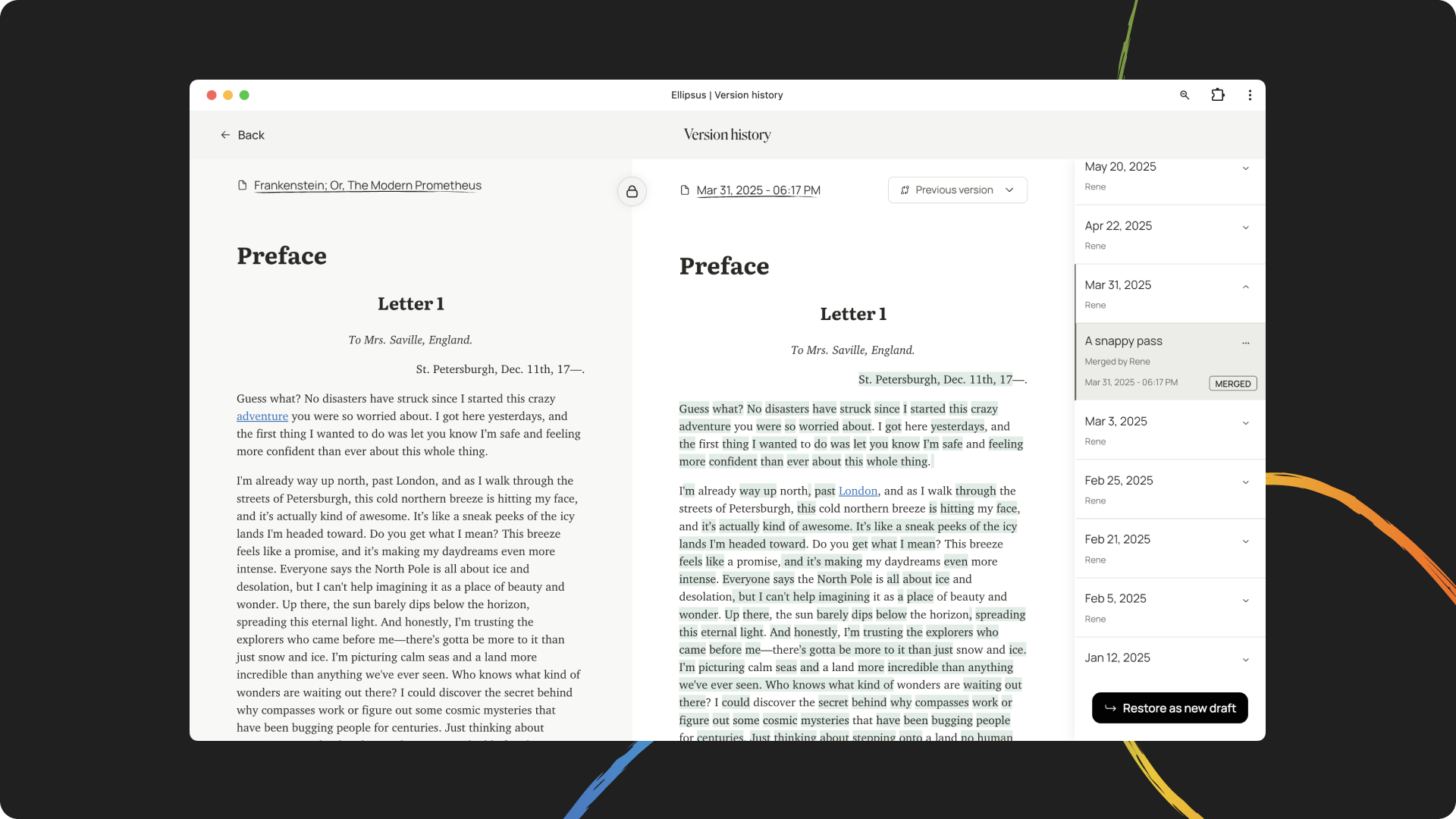
Once you’ve selected a version, you can either compare it to the previous version or the current draft. Comparing a version with the previous one allows you to see the changes made between recorded versions (i.e., the preceding timestamp); comparing with the current draft shows the evolution between then and now.
There are two ways to restore a version:
Click the three dots in the top right corner of the version entry and select Restore as new draft.
Click on a version and then select Restore as new draft in the bottom-right.
Restored drafts have the following naming convention until renamed: Draft name - Original creation date [Restored]. Whoever restores a draft will be listed as its owner, even if they’re restoring a draft created or edited by another collaborator.
Share your version history with Ellipsus Plus
When you Emboss your work, you can choose to share snapshots of your version history in your Reader links as an added proof-of-work layer.
Was this article helpful?
That’s Great!
Thank you for your feedback
Sorry! We couldn't be helpful
Thank you for your feedback
Feedback sent
We appreciate your effort and will try to fix the article