Ellipsus makes it easy to invite others and collaborate your way. You control who can view, comment, edit, or merge drafts (and whether they join by email or link).
Note: You must be signed into an Ellipsus account to collaborate. If you (or your collaborator) do not have an account, you can create one for free to get started!
TABLE OF CONTENTS
Roles
There are currently five roles in Ellipsus.
Owner
Anyone who creates a document is its owner. Owners can edit the main document, create and delete drafts, edit all existing drafts, merge drafts into the main document, invite/manage editors, and rename or delete the document.
Document editor
(formerly “Can merge”)
Collaborators invited with this role can edit the main document, create drafts, edit drafts, comment, chat, and merge drafts. They cannot invite/manage collaborators or see collaborators’ emails.
Draft editor
(formerly “Can edit”)
Collaborators invited with this role cannot edit the main document. Instead, they can create and edit drafts, leave comments, and chat with others. They cannot merge drafts, invite/manage collaborators, or see collaborators’ emails.
Commenter
(formerly “Can comment”)
Comment only collaborators can leave comments on the main document as well as create drafts to leave comments. They cannot make direct edits to documents or drafts, merge drafts, chat with others, invite/manage collaborators, or see collaborators' emails.
Viewer
(formerly “Can view”)
Viewers can read the main document and view all its drafts and version history. They cannot read or leave comments, make edits, merge drafts, invite/manage collaborators, or see collaborators’ emails.
Owner | Document editor | Draft editor | Commenter | Viewer | |
|---|---|---|---|---|---|
View the main document + all drafts | ✅ | ✅ | ✅ | ✅ | ✅ |
Edit the main document | ✅ | ✅ | ❌ | ❌ | ❌ |
Edit drafts | ✅ | ✅ | ✅ | ❌ | ❌ |
Create drafts | ✅ | ✅ | ✅ | ✅ | ❌ |
Rename personal drafts | ✅ | ✅ | ✅ | ✅ | ❌ |
Rename all drafts + main doc | ✅ | ❌ | ❌ | ❌ | ❌ |
Delete all drafts | ✅ | ❌ | ❌ | ❌ | ❌ |
Delete personal drafts | ✅ | ✅ | ✅ | ❌ | ❌ |
Delete the main document | ✅ | ❌ | ❌ | ❌ | ❌ |
Merge drafts into the main document | ✅ | ✅ | ❌ | ❌ | ❌ |
View version history | ✅ | ✅ | ✅ | ✅ | ✅ |
Restore previous versions | ✅ | ✅ | ✅ | ❌ | ❌ |
Leave comments + replies | ✅ | ✅ | ✅ | ✅ | ❌ |
Read all comments | ✅ | ✅ | ✅ | ✅ | ❌ |
Resolve/delete personal comments | ✅ | ✅ | ✅ | ✅ | ❌ |
Resolve/delete comments from all collaborators | ✅ | ❌ | ❌ | ❌ | ❌ |
Invite/manage collaborators | ✅ | ❌ | ❌ | ❌ | ❌ |
View collaborators (display names/roles) | ✅ | ✅ | ✅ | ✅ | ✅ |
Download main document + drafts | ✅ | ✅ | ✅ | ❌ | ❌ |
Copy main document + drafts | ✅ | ✅ | ✅ | ✅ | ✅ |
Export to AO3 | ✅ | ❌ | ❌ | ❌ | ❌ |
Create/manage Reader links | ✅ | ❌ | ❌ | ❌ | ❌ |
Create Snippets | ✅ | ✅ | ✅ | ❌ | ❌ |
View Writing insights (Plus) | ✅ | ✅ | ✅ | ✅ | ✅ |
Chat (Plus) | ✅ | ✅ | ✅ | ❌ | ❌ |
View Writing journey in document/draft info (Plus) | ✅ | ❌ | ❌ | ❌ | ❌ |
How to invite collaborators
There are two ways to invite collaborators to your docs:
By email
By shareable link
Each method lets you assign a specific role depending on how you want others to engage with your work. You can invite as many people to collaborate as you'd like.
Note: When you invite someone, an Ellipsus account is created for them automatically. They’ll receive an email with a link to your document and instructions for setting up their account. Shared documents will appear in the Shared with me tab on each collaborator’s dashboard.
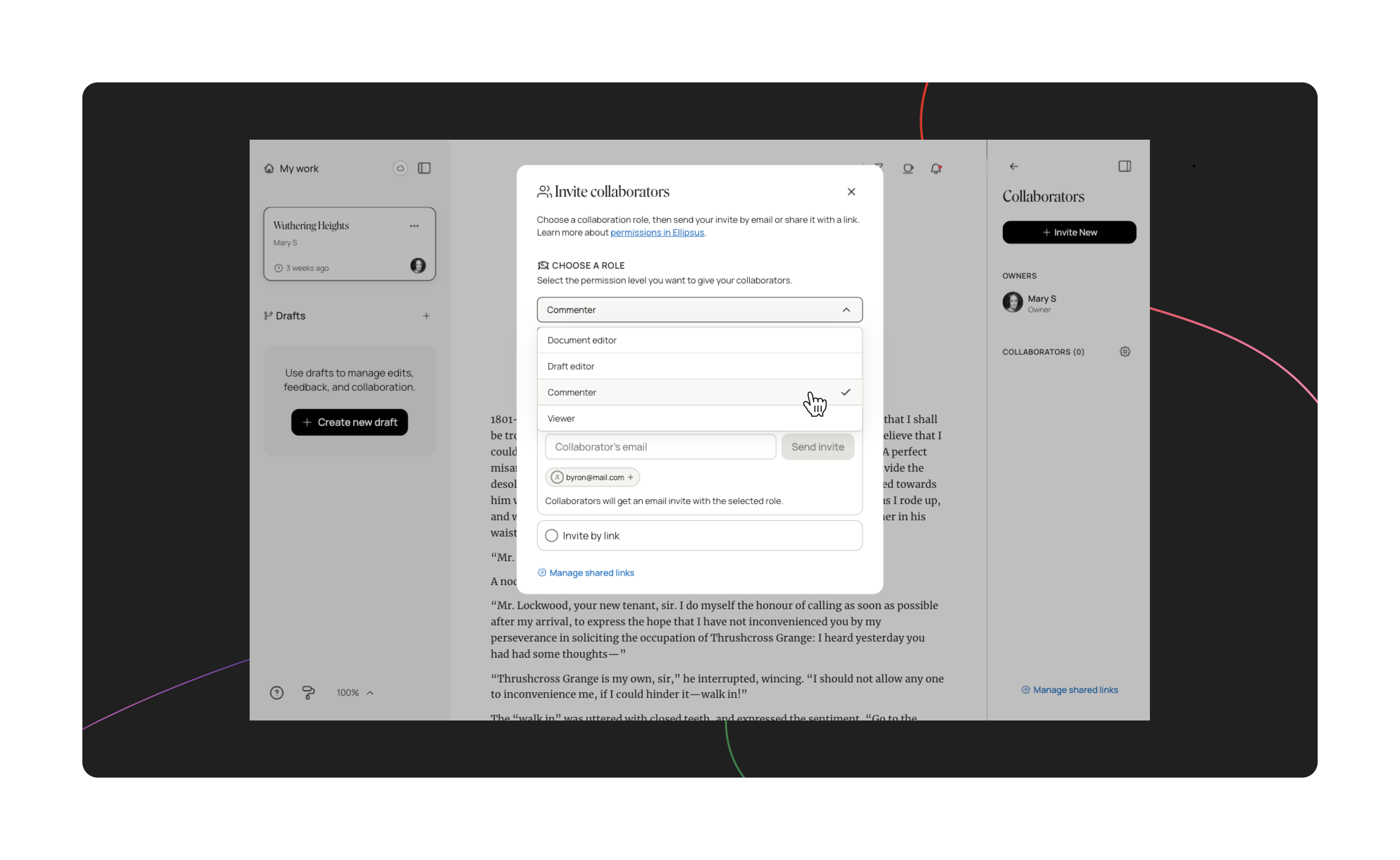
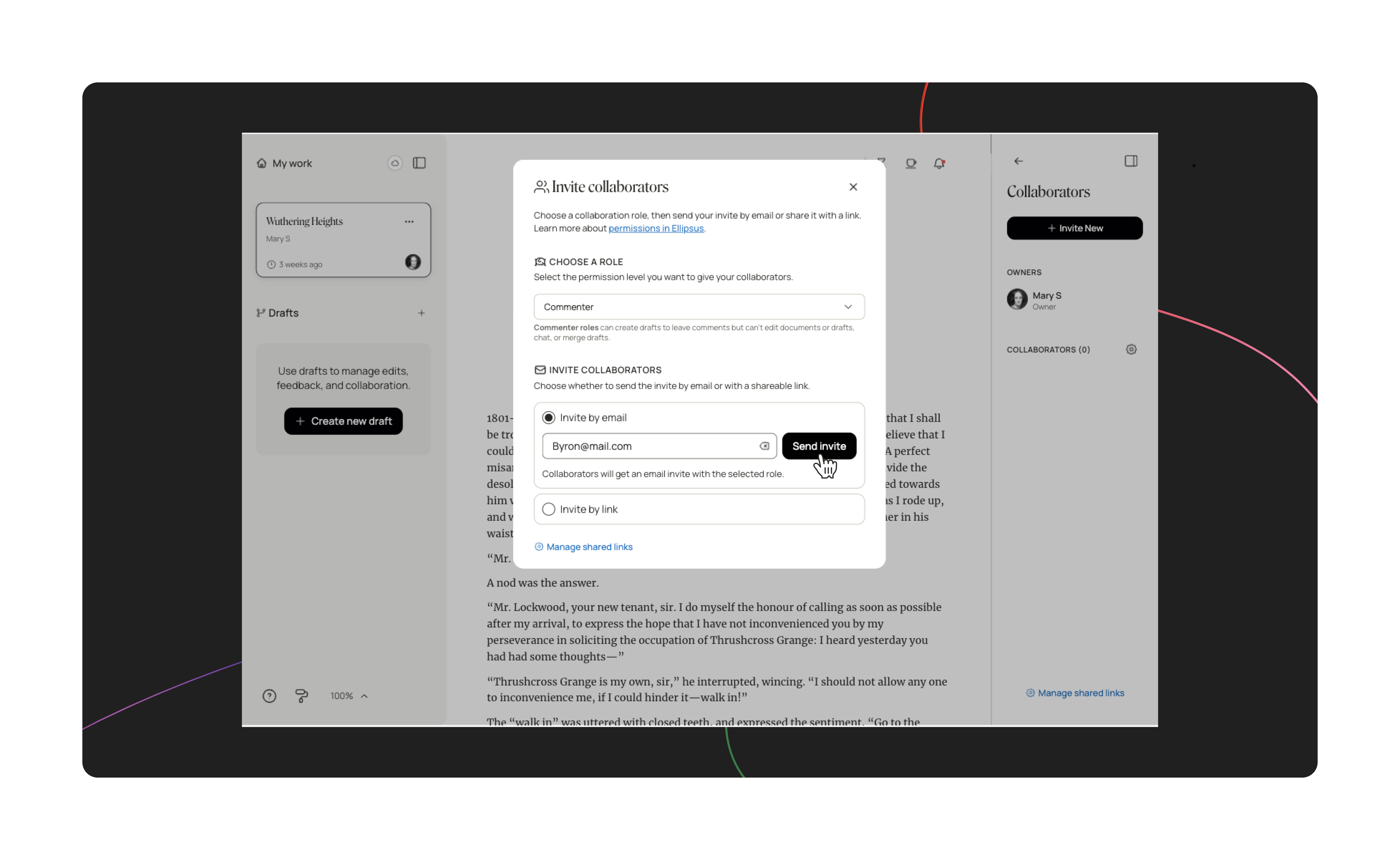
Invite collaborators by email
If you want to invite collaborators via their email address, you can:
Open the Collaborators panel in the right-hand sidebar
Click + Invite new
Choose a role for your collaborator
Select Invite by email and enter your collaborator's address
Click Send invite
Invite by link (no email required)
Prefer to share a document more broadly (or just don’t want to type in everyone’s email)? You can generate a custom link instead. With custom links, you can:
Assign a specific role to anyone who uses the link
Create multiple links for different roles or groups
Set links to be single-use, or expire after a certain time. (You can access link settings when choosing Invite by link.)
Share your link anywhere
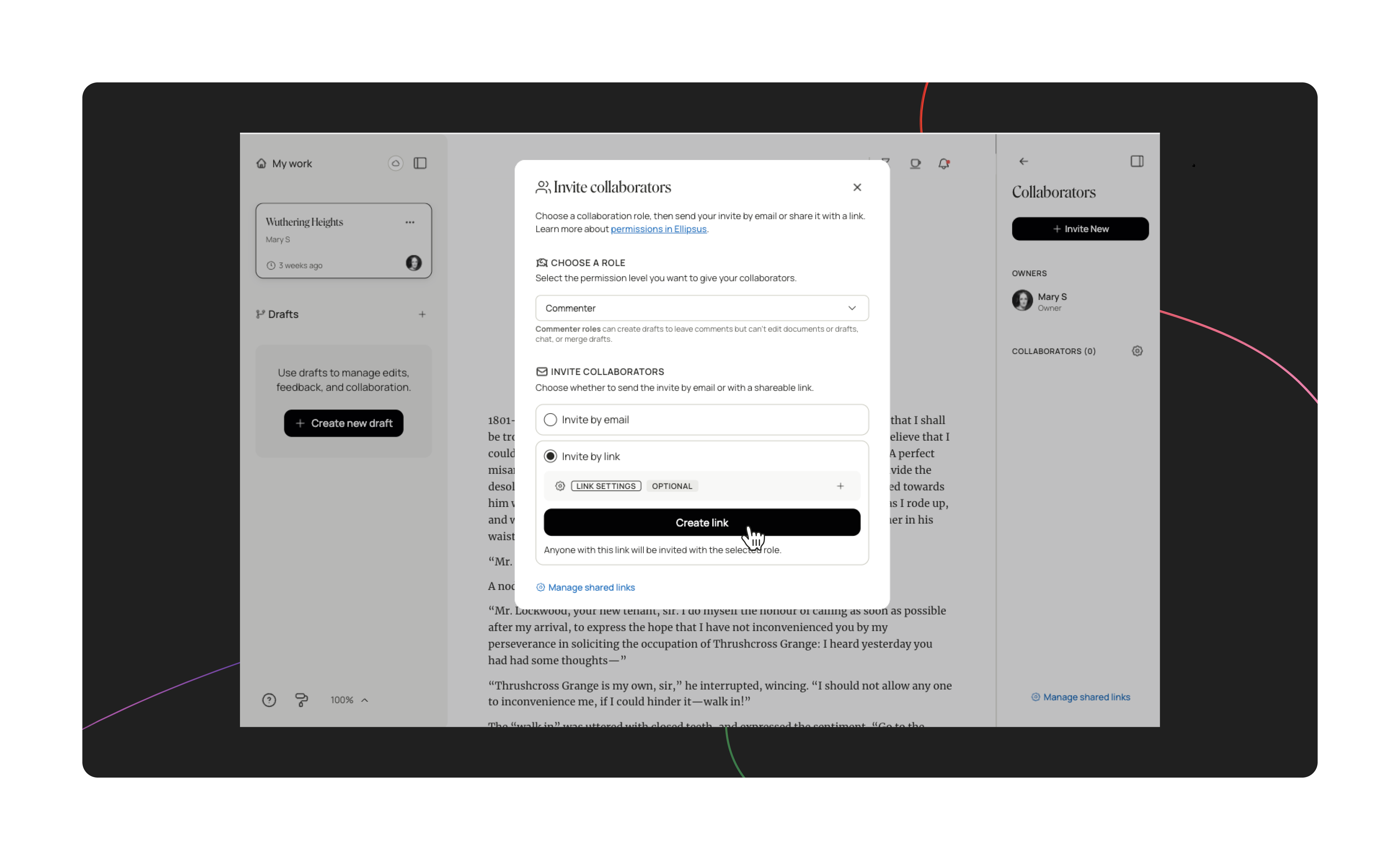
To generate a shareable link:
Open the Collaborators panel
Click + Invite New
Choose a role anyone with the link should have
Select Invite by Link to create your shareable URL
Click Create link
Note: Anyone who clicks the link will need to log in or create an Ellipsus account to access the document.
Manage collaborators
If you change your mind after sending an invite, you can easily remove a collaborator or update their permissions.
Open Collaborators in the right-hand sidebar.
Click the gear icon to edit collaborator access
Use the menu next to each collaborator’s name to change their role or remove them
Note: If you remove a collaborator but have the public Reader link enabled, they will still be able to view the public work using the URL.
Leaving a shared document
If you no longer want access to a shared draft—or want to stop receiving notifications—you can leave the document at any time.
Open the shared draft
Click Collaborators
Select the gear icon to open the collaborator list
Choose your username
Select Leave document from the dropdown menu
Was this article helpful?
That’s Great!
Thank you for your feedback
Sorry! We couldn't be helpful
Thank you for your feedback
Feedback sent
We appreciate your effort and will try to fix the article