If you’re on a deadline sprint, tackling a long-form project, getting into the groove of a challenge, or working toward a daily writing habit, writing goals can help you get there.
With goals, you can set a word count target for any draft or document, add an optional deadline, and track your progress as you write. If you're working toward a specific completion date, Ellipsus will calculate how many words you need to write each day to stay on track.
Goals are easy to create and edit. Each goal is tied to an individual document or draft, and carries across your devices: desktop or mobile, online and offline. You can also collaborate with others, and reach your goal together!
Goals are available for Ellipsus Plus.
TABLE OF CONTENTS
How to create a goal
To create a new goal:
Open the specific draft you'd like to set a goal for
Click the target icon at the top of your screen to open the Word count & goals panel, and select Create writing goal
Enter your target word count, or choose from our preset word count targets
(Optional) Choose a deadline (e.g. 1 day, 1 week, 30 days), or pick a date from the calendar
Click Start to begin tracking your goal
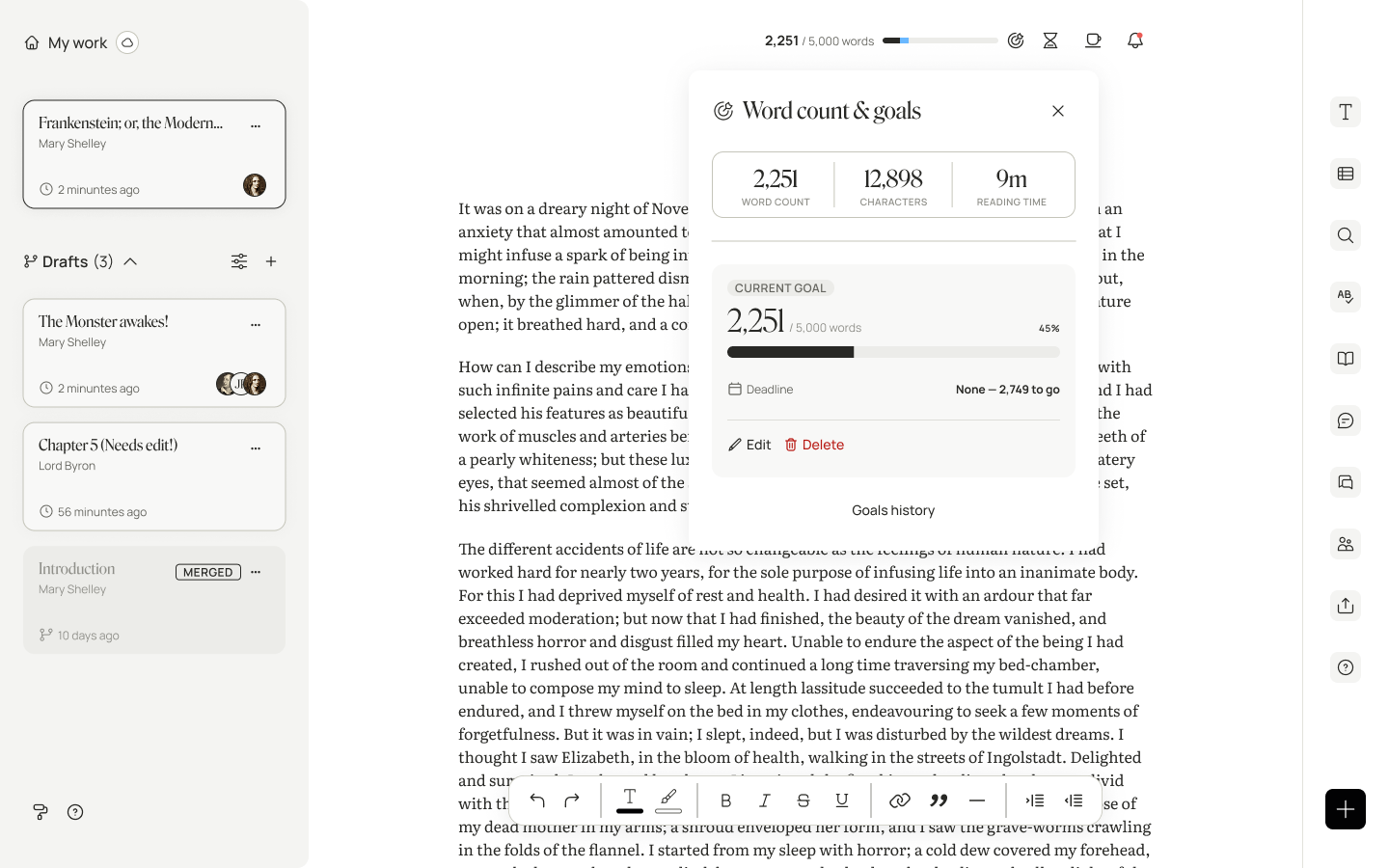
Your goal’s progress bar will appear at the top of your screen, and in the Word count & goals panel. As you write, the bar will update to reflect the words written in your document or draft.
Important info
You can have one active goal per draft. Each goal tracks only the words in the individual draft where it's set.
If you set a goal on your main draft, words written in its separate drafts won't count toward that goal. To track a draft's progress, you'll need to set a goal for that specific draft.
Duplicating or creating a new draft will not carry over an existing goal.
Goals are based on the total number of words in your draft, not only words added after creating the goal (e.g., if you've already written 2,000 words and set a 5,000-word goal, you're 40% of the way there).
Setting a deadline is optional when creating your goal. If you'd rather write at your own pace, you can set a word target without a deadline.
If you revise or delete text, your progress will adjust accordingly as long as the goal is still active.
Daily targets
If you've set a deadline, Ellipsus will calculate a daily word target to help you reach your goal on time. For example, if your draft contains 2,000 words and you'd like to reach 5,000 words in 10 days, your target estimate will show 300 words per day.
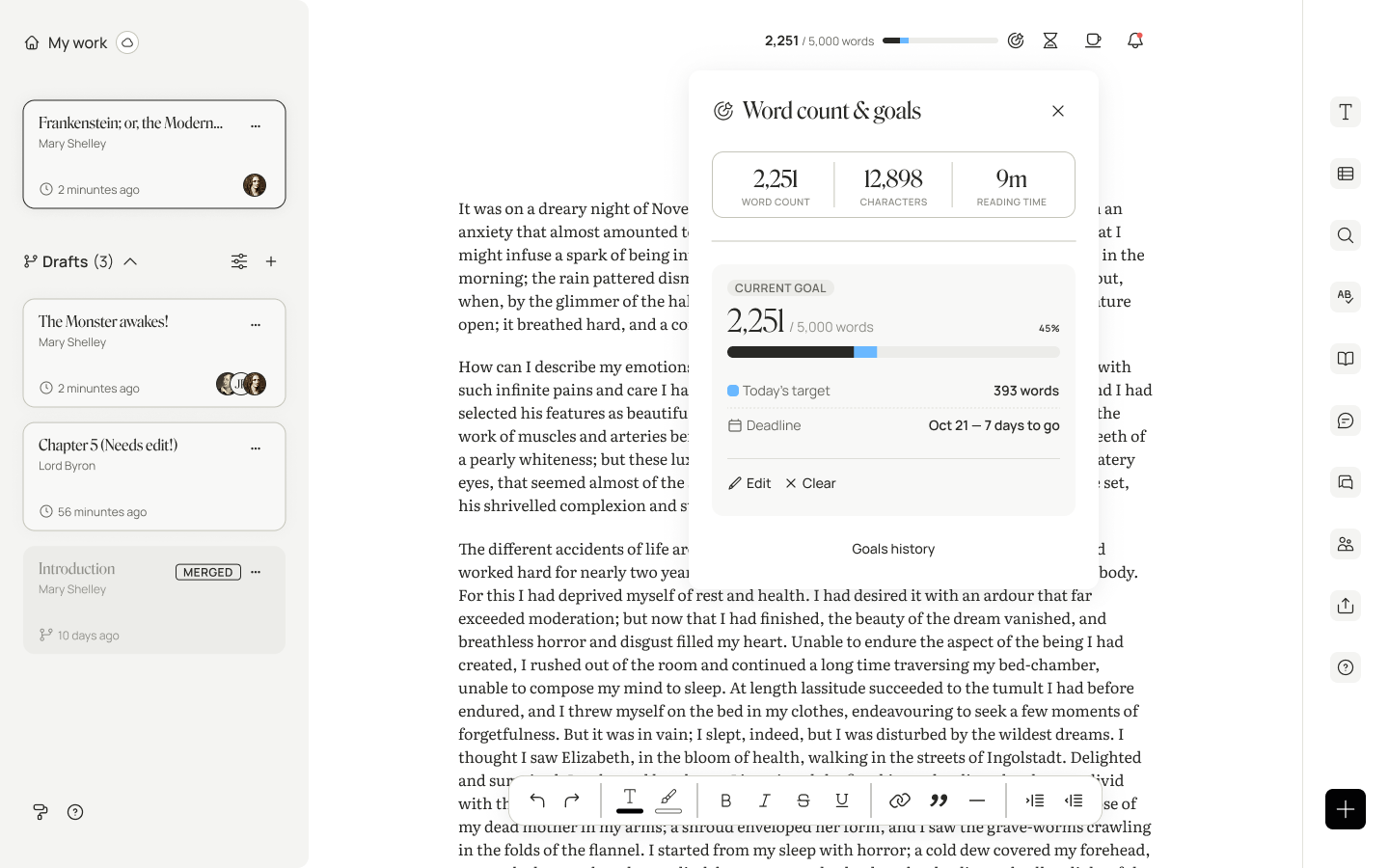
Daily targets are estimates designed to help you pace yourself to meet your deadline. Your daily target is calculated each day based on how many words you have left to write and how much time remains until you reach your deadline.
If you write more than expected on a specific day, your remaining daily targets will decrease.
If you miss a writing day, your daily targets will increase to help you catch up.
If you reach a daily target, your goal panel will show that you’ve reached your goal.
Note: “End of day” is 23:59:59 in the timezone of the person who created the goal.
Your daily target will be represented in blue on your progress bar, while the dark portion of your progress bar represents your current word count.
How deadlines work
Deadlines are based on calendar days (e.g., selecting 1 week gives you seven calendar days to meet your goal).
Note: Your goal’s deadline will end on 23:59:59 on your chosen date, based on the time zone of the person who created the goal.
Your daily target begins estimating when you set it (on the day you create your goal), so you can get started right away.
Your progress bar
Your goal’s progress bar will appear at the top of your screen, and in the Word count & goals panel. As you write, the bar will update to reflect the words written in your document or draft.
If you set a deadline, the bar will display two colors: the dark portion represents your current word count, while the blue portion represents your daily writing target (the estimate of words you need to write per day to reach your deadline).
Editing a goal
You can change any active goal by:
Opening up the Word Count & Goals panel
Selecting Edit
You can change your word count target, adjust your deadline, or remove the deadline.
Clearing a goal
If you would like to stop tracking an active goal, select Clear goal from the Word count & goals panel.
This will end your goal and move it in the history panel, where you can review it alongside your previous goals.
Clearing a goal will not affect your writing. You can start a new goal at any time.
History panel
You can review your previous goals via the history panel. Once your current goal is cleared or reached, you will see it on the list as a closed goal.
You can also permanently delete any previous goals here.
Note: Deleting a goal is permanent and removes all history associated with that goal; it cannot be recovered, even by our team.
Deleting a goal will not affect your writing.
What happens when I reach my goal?
Woohoo, congrats! ?
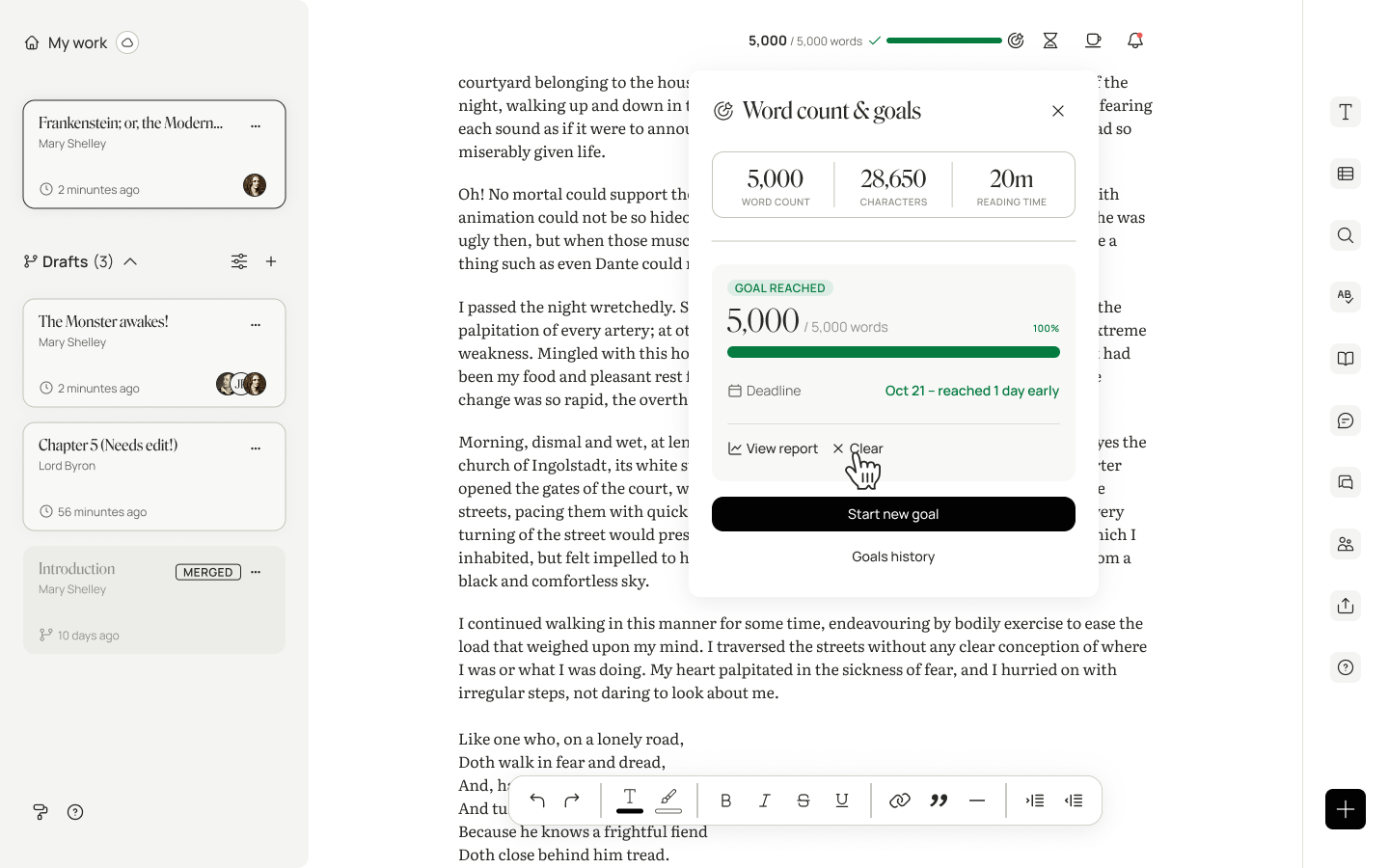
When your draft or document hits the word count target, the goal panel will read Goal reached, and you’ll see a check mark in the editor. The goal tracker will remain active unless you choose to clear the goal.
What if I don’t reach my goal?
Your goal will be marked as Deadline passed, but it will continue tracking your progress until you complete or delete it. You can always edit your goal to extend your deadline, and keep on writing until you complete your word target.
If you reach your word count target after the deadline, your goal will be marked as completed, with a note showing how many days past the deadline you finished.
You can review your results or delete your goal at any time from the History panel.
Deleting a goal will not affect your writing.
Goals and collaboration
Goals work on collaborative projects too! Because goals belong to an individual draft, anyone writing on that draft will contribute to the goal.
If a document’s owner has Ellipsus Plus, users invited with a document/draft editor role can participate in and manage goals even if they are free Ellipsus users.
Editing collaborators’ permissions will let them create goals, edit them, or clear them.
Document editor: Permission to create, edit, or clear goals so in documents and drafts
Draft editor: Permission to create, edit, or clear goals only in drafts
Collaborators with view-only or comment-only permissions cannot access, view, or manage writing goals.
Goals are shared across collaborators, but each draft has its own independent goal. If you're working on several drafts, you can set different targets for each.
Can collaborators on the free plan access goals?
Goals follow the document owner's plan (e.g., if the document owner is on the Free plan, goals will not be available for that document, even if one collaborator has Plus).
Do goals work offline?
Yes! You can create, edit, or delete any goal while working offline.
Your writing progress will continue to update as you work offline. Once you reconnect, Ellipsus syncs your changes, and your word count / goal progress will adjust after syncing. (Any changes made by collaborators while you were offline will also sync once you reconnect.)
Was this article helpful?
That’s Great!
Thank you for your feedback
Sorry! We couldn't be helpful
Thank you for your feedback
Feedback sent
We appreciate your effort and will try to fix the article