Need to leave feedback, ask questions, or workshop ideas with your collaborators? Ellipsus supports inline commenting, with a few features that make it different from traditional word processors.
TABLE OF CONTENTS
- How to leave a comment
- Working with drafts and comments
- Merging drafts with comments
- Commenting with multiple collaborators
- Comment notifications
Learn how to comment on your smartphone here!
How to leave a comment
Open the draft and navigate to the Comments panel on the right sidebar
Highlight the text you'd like to comment on
Type your comment in the space provided
Use formatting tools to bold, italicize, or underline text
Click Comment to submit
Your comment will now appear linked to that portion of the work for others to see and respond to.
You can also reply to comments by writing in the prompt (Share your thoughts…) beneath an existing comment.
Add gifs to comments
Ellipsus lets you comment and reply to comments with GIFs (via Giphy integration). To add a GIF:
Open the comment input, and tap the GIF icon
Search for the perfect reaction
Tap to insert, with or without accompanying text
Working with drafts and comments
Comments on the main document can be carried over to drafts by selecting “Keep Comments” during draft creation.
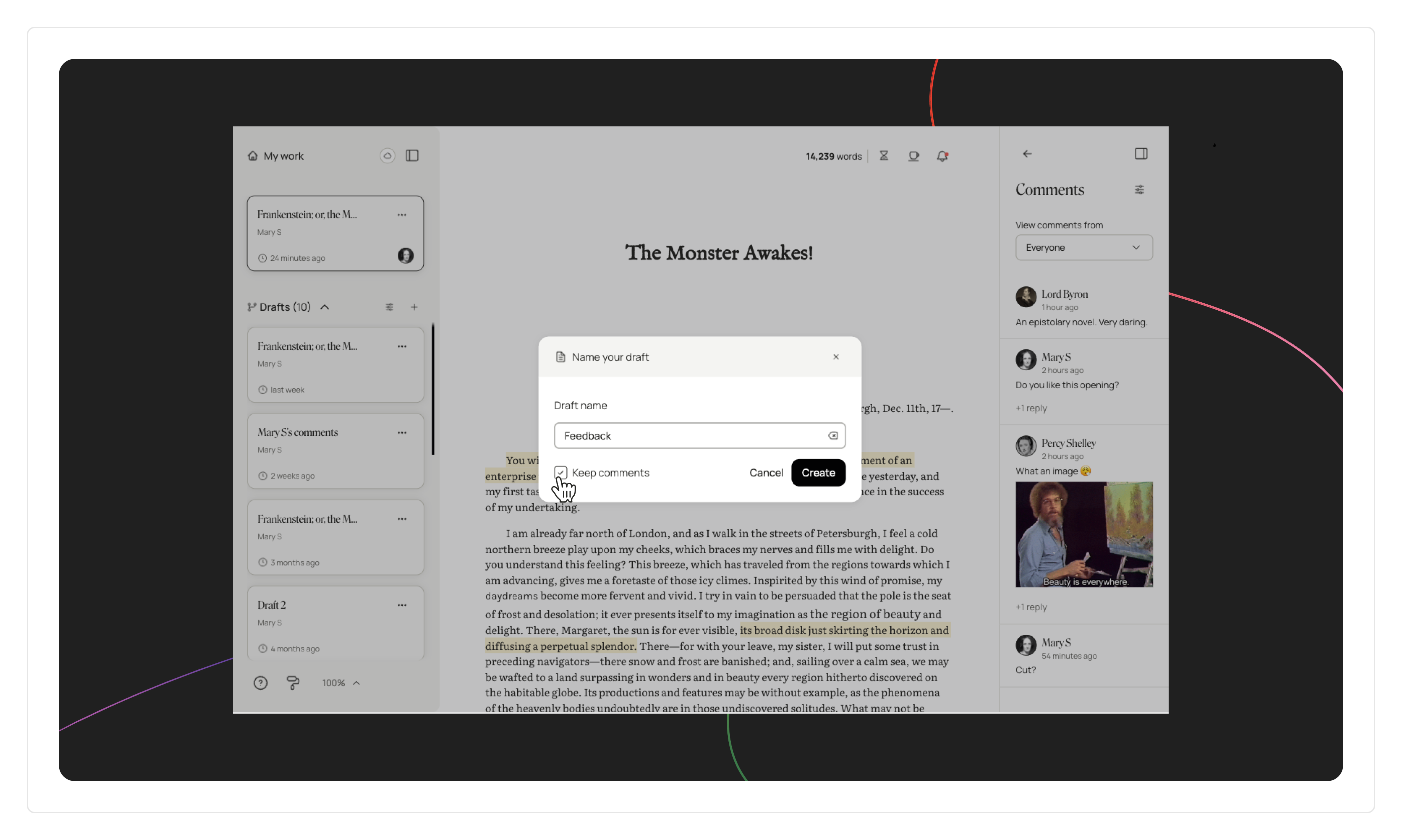
Note: Comments in Ellipsus are a little fragile—if you remove or heavily alter the text they're connected to, they will get disconnected. You'll still be able to find them in the comments panel, but they'll no longer be attached to the text.
Merging drafts with comments
When merging drafts to the main document, comments in the draft (including resolved comments and replies) will be carried over to the main document automatically. In the case of overlapping comments (i.e. if there is a different comment connected to the same text in the draft you're merging) a comment in a draft will overwrite a comment in the main document linked to the same portion of text.
Commenting with multiple collaborators
You can invite as many collaborators as you'd like to a document. All collaborators with commenter permissions and above (i.e. everyone apart from Viewers) can read, create, and reply to comments.
- Viewers cannot see comments
- Only document editors and the document owner can resolve comments
- Only the document owner can delete comments
- You can filter for resolved comments or by individual collaborator, making it easier to sort feedback
Your comments are tagged with the commenter’s display name and profile picture—this is the only identifying information visible to other collaborators in the doc.
Comment notifications
The notification center—available from both the dashboard and editor (from the bell icon)—makes it easy to stay up to date on your comments (or turn off notifications if you're getting too many).
Was this article helpful?
That’s Great!
Thank you for your feedback
Sorry! We couldn't be helpful
Thank you for your feedback
Feedback sent
We appreciate your effort and will try to fix the article